Просмотр новости
Найдите то, что Вас интересует
 Спутники
 РН
РН SpaceX
 Роскосмос
 NASA
NASA
СпутникиРНSpaceXРоскосмосNASA
If your phone is always blowing up with junk, you can stop notifications dead in their tracks and entirely disable notifications per-app.
(via Cult of Mac - Your source for the latest Apple news, rumors, analysis, reviews, how-tos and deals.)
If your iPhone is always blowing up with junk and spam, you can stop notifications dead in their tracks. You may not know that you can entirely disable notifications per-app and turn off different types of notifications to keep them from cluttering your phone.
I’m not afraid to disable all notifications from an app if it crosses me one time too many. For others, I allow notifications on the Lock Screen, but disable them from Notification Center, so they’re more temporary.
Here’s how you can do it, too. Check out our quick video.
How to stop notifications on your iPhoneUnfortunately, many apps abuse notifications. Most bug you to allow notifications when they first launch. At first, it’s handy to be notified when a friend sends you something. But if you don’t open an app after a while, it’ll likely keep bugging you over and over.
While Apple’s App Store Guidelines prohibit using notifications for marketing purposes, unless people specifically opt in, Apple doesn’t really enforce that rule at all. It’s really frustrating for those of us trying to achieve zen.
Here’s the next best thing you can do.
Table of contents: Stop notifications on iPhone
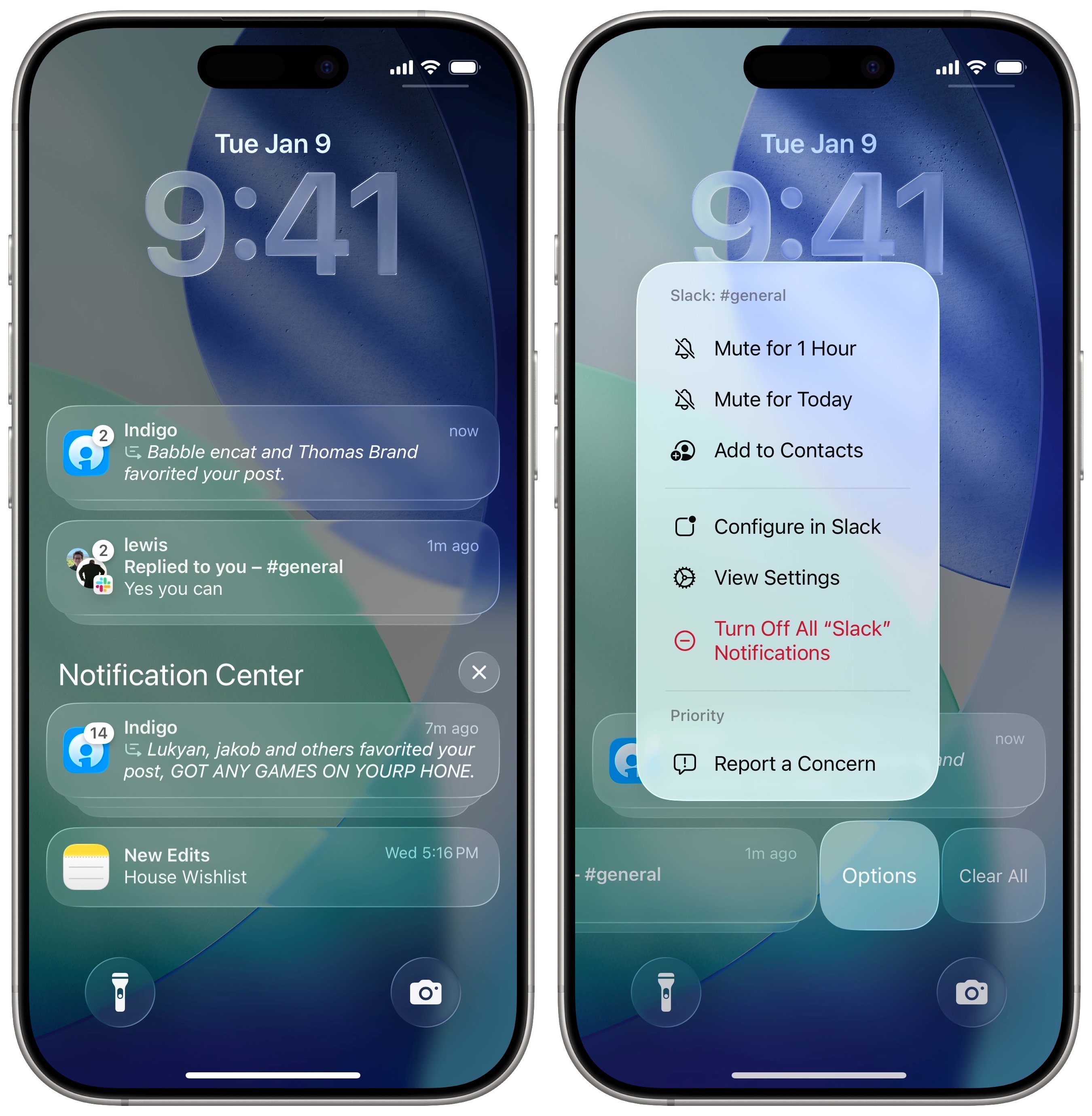 Tap the Options menu for, well, options.
If you get a notification that’s absolutely pointless, there’s a quick solution. From your iPhone’s Lock Screen, swipe left on the notification and tap Options.
Right there, you can tap Turn Off to disable notifications for that app. It’s a great way to punish an app for wasting your time. I do this for just about any and all games on my phone.
For certain apps, you can tap Configure… to change what kind of notifications you’re sent right then and there. It’ll take you inside the app, so you can turn off specific kinds of notifications: DMs, replies, metrics, promotions, digests, etc. This will obviously vary based on the app.
Make specific changes in Settings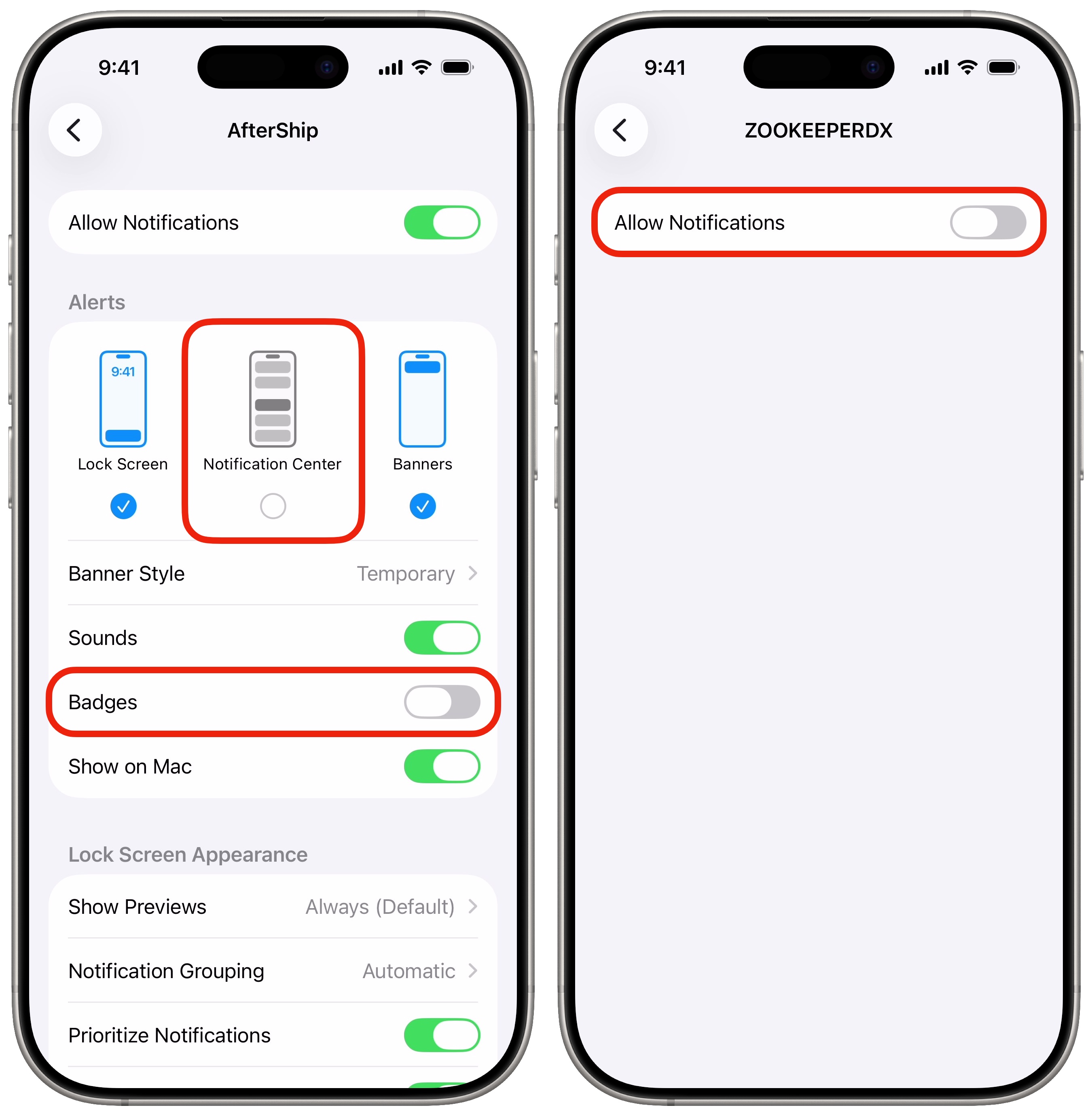 Turn off notifications you don’t need.
If you don’t want to entirely turn off notifications, there’s another middle ground option I recommend.
Go to Settings > Notifications and tap on an offending app that you see in the list. Then you can take some or all of the following steps to stop your iPhone from being inundated with less than useful notifications.
My final piece of advice is to stop the problem going forward. When you first install an app, and it floods you with alerts asking for permission for your camera, microphone, location, everything — stop and take it slow.
It’ll probably beg you to enable notifications, but you don’t have to. Keep the notifications turned off. That should keep you at peace.
Silence phone calls from unknown numbersPhone calls are a very special kind of annoying. They take over your whole screen, vibrate like a jackhammer, and play music to get your attention. And most of them are complete spam.
In Settings > Apps > Phone, scroll down to the Screen Unknown Callers section and set it to Silence. Anyone who isn’t in your contacts (and you haven’t called before) will be silenced when they try to call you.
You will quickly realize after setting this up how many calls are totally unimportant. Will you miss something? Maybe, but will you ever be bothered again? No. And you can’t put a price on that kind of lifestyle improvement.
More iPhone customization tips| # | Наименование новости | Тональность | Информативность | Дата публикации |
|---|---|---|---|---|
| 1 | My top 3 tips for making an iPhone Home Screen that doesn’t suck | 0 | 22.53 | 09-05-2026 |
| 2 | Easy way to record and transcribe your iPhone calls | 0 | 18.38 | 27-04-2026 |
| 3 | Fed up with iPhone autocorrect? Here’s how to reset it. | 0 | 20 | 10-05-2026 |
| 4 | 8 built-in editing tools to glow up your pictures on your iPhone | 0 | 24.6 | 30-05-2026 |
| 5 | I replaced 7 Apple apps on my Mac. Here’s what I use instead. | 0 | 23.22 | 08-08-2026 |
| 6 | 5 overlooked Mac features that save me time every day | 0 | 26.69 | 01-08-2026 |
| 7 | 5 tips for natural-looking, lo-fi pictures on your iPhone | 0 | 30.33 | 26-05-2026 |
| 8 | Apple patent hints at an iPhone that knows when to leave you alone | 0 | 19.4 | 13-08-2026 |
| 9 | iOS 27 just broke your oldest iPhone habit | 0 | 5 | 02-07-2026 |
| 10 | 4 reasons you should stop tracking Apple’s sleep score | 0 | 21.74 | 26-04-2026 |