Просмотр новости
Найдите то, что Вас интересует
 Спутники
 РН
РН SpaceX
 Роскосмос
 NASA
NASA
СпутникиРНSpaceXРоскосмосNASAMost multi-college systems are dealing with the same PDF accessibility problem. There are too many documents, created by too many people, across too many tools. Syllabi, forms, reports, policies and brochures are often spread across websites, LMS platforms, intranets and shared drives. That makes it hard to know which PDFs are accessible, which need remediation […]
The post The Campus Playbook: Scaling PDF Accessibility Across Multi-College Systems appeared first on Venngage Blog.
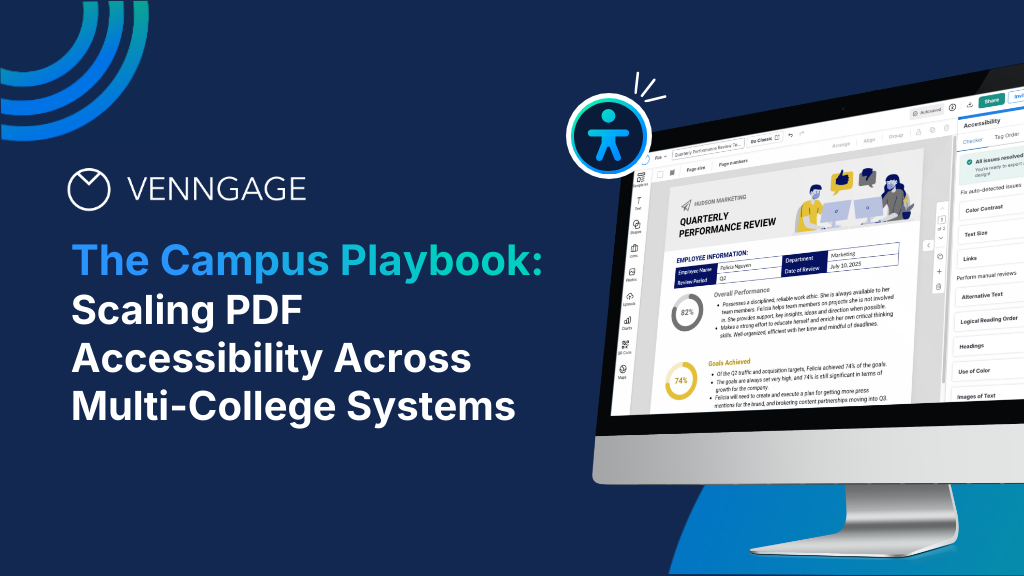
Most multi-college systems are dealing with the same PDF accessibility problem. There are too many documents, created by too many people, across too many tools.
Syllabi, forms, reports, policies and brochures are often spread across websites, LMS platforms, intranets and shared drives. That makes it hard to know which PDFs are accessible, which need remediation and where to start.
Trying to fix everything at once usually makes the problem worse. A better process is to triage what already exists, stop new inaccessible content from piling up and build accessibility into the way people already create and publish documents.
This playbook explains how to scale PDF accessibility in higher education, especially across a multi-campus system.
Why ADA Title II makes PDF accessibility for higher education more urgentADA Title II in higher education requires public colleges and universities to make covered web content and mobile apps conform to WCAG 2.1 Level AA. That includes PDFs that fall within the rule’s scope. With ADA Title II compliance deadlines now set for April 2027 and April 2028, institutions have less time to get their accessibility processes in order.
The biggest risk to PDF accessibility compliance usually isn’t the legacy backlog. It’s the constant influx of new inaccessible PDFs created every day by faculty and staff who’ve never been taught otherwise. You can spend a year clearing a PDF backlog and still be worse off if the intake never stops.
That means the real fix has to change three things at once: culture, workflow, and tools. A sustainable approach must control both sides of that flow: what is already in the system and what enters next.
Want the complete step-by-step framework to ensure digital accessibility in higher education, including the full 90-day launch plan?
To scale PDF accessibility across universities, start by creating a shared process for finding, prioritizing and fixing existing PDFs, then standardize how new accessible documents are created and published.
That process should cover six areas: content inventory, PDF triage, governance, accessible document creation, staff training and ongoing measurement. Together, these steps help reduce the existing backlog while preventing the same accessibility compliance issues from being recreated across campuses.
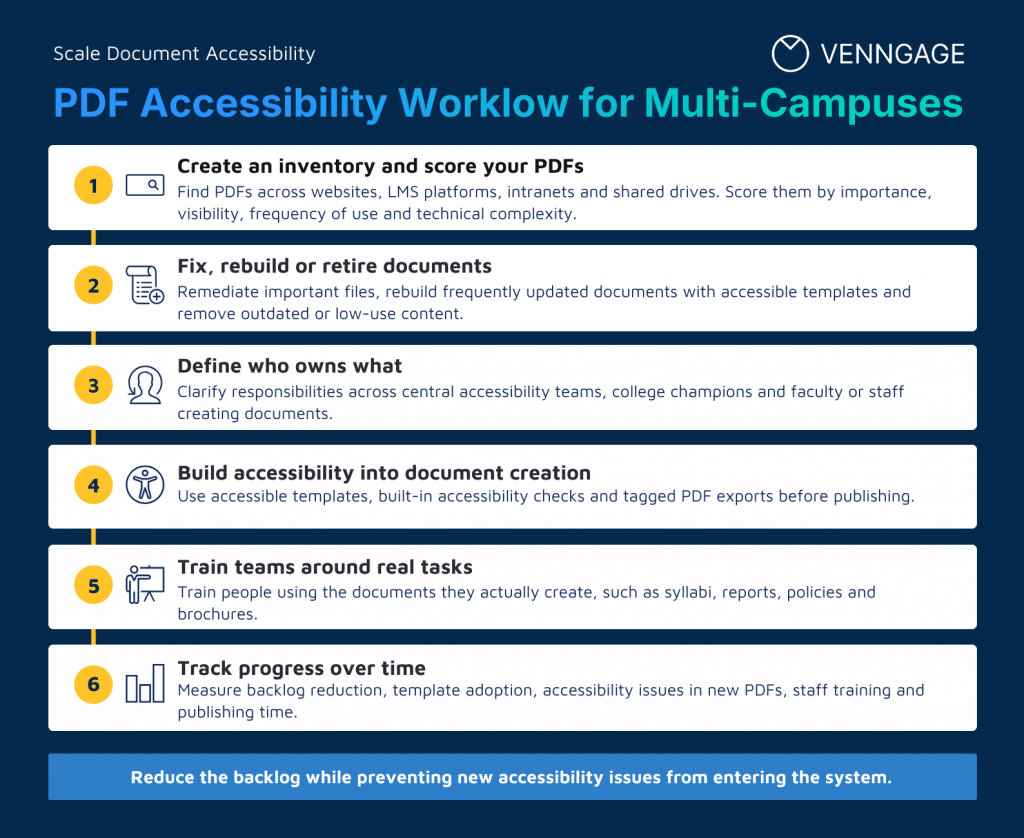
Before deciding which PDF to remediate, you need to know what is actually in the system and which documents need attention first.
Start by looking beyond the main college website. PDFs may be stored or published across:
Then categorize what you find by document type, such as syllabi, forms, policies, brochures and reports. This makes it easier to see where most of your PDF content is coming from and which teams are creating it.
Once you’ve found the PDFs across your websites, LMS platforms and shared drives, add a simple score to help determine which files need attention first. Use the same criteria across colleges so teams are prioritizing documents consistently.
| Criteria | What to look at | Higher priority when… |
|---|---|---|
| Legal or program importance | Whether the PDF supports access to a program, service or requirement | Students rely on it to access or participate in an important service or program |
| Visibility | Where the PDF is published and who can access it | It is public-facing or regularly used by students |
| Frequency of use | How often the document is accessed or distributed | It is used frequently or repeatedly throughout the year |
| Technical complexity | Tables, forms, images, charts, reading order and other structural elements | The document contains accessibility issues that are more complex to review or remediate |
You can also record basic details such as the document owner, where the PDF is published and whether it is still current.
The PDF inventory gives you a clearer picture of the backlog, while the scoring helps you decide which documents should move to the top of the remediation queue.
Step 2: Decide which PDFs to fix, rebuild or retireRelated: How LACCD Built an Accessibility Model Across Nine Campuses
Once you create the inventory, start deciding which documents are worth remediating, rebuilding or removing.
A simple fix, rebuild or retire framework can make those decisions easier:
| Decision | When it makes sense | What to do | Example |
|---|---|---|---|
| Fix | The PDF is still important, actively used and reasonable to remediate | Correct the accessibility issues in the existing document | Current policy or student form |
| Rebuild | The PDF is frequently updated or has structural issues that are difficult to repair repeatedly | Recreate it using an accessible template | Syllabus updated every semester |
| Retire | The content is outdated, duplicated or rarely used | Remove, archive or replace it with a more appropriate accessible format | Old event flyer or outdated report |
For example, an actively used policy may need remediation, while an old event flyer can probably be removed. A syllabus that changes every semester may be better rebuilt as an accessible template so the same problems don’t return with every new version.
A simple six-question triage tool can guide most of these decisions in under a minute per file, which matters enormously when you’re triaging thousands of documents rather than dozens.
See the exact triage decision tree used in this framework.
The central accessibility team can own the overall program, including standards, audits, remediation guidance and reporting. But the people creating and publishing PDFs also need clear responsibilities within that process.
Instead, define where responsibility sits at each stage of the digital accessibility workflow. A distributed model with clear roles at three levels works better for multi-campus institutions:
| Role | Core responsibility | What they may own |
|---|---|---|
| System or central accessibility team | Set the overall accessibility standards and process | Policies, approved templates, audits, reporting and remediation guidance |
| College accessibility champions | Help teams apply the process within individual colleges | Local support, training, common accessibility questions and escalation |
| Faculty and staff | Follow the approved process when creating and publishing documents | Using approved templates, completing required checks and correcting issues in content they own |
A clear RACI matrix (who’s Responsible, Accountable, Consulted, Informed) keeps these roles from overlapping or falling through the cracks. Central teams should own and maintain the reusable accessible templates specifically, since that’s what prevents off-brand or non-compliant content from spreading across campuses.
Step 4: Build accessibility into new PDF creationRelated: How Arkansas Scaled Digital Accessibility for 436,000 Students
Remediation only fixes what already exists. The only way to actually get ahead of the problem is accessible creation at the source. This means that new content must be accessible the moment it’s published, not after a review flags it.
Best practices at this stage:
A handful of well-built accessible templates — a modular syllabus, an executive report with proper caption structure, a high-contrast event flyer with alt text prompts built in — can cover most of what a college actually publishes day to day. Institutions using accessible-by-default templates report that 80–90% of newly created documents need no post-creation remediation at all, which is the entire point: the fix moves upstream.
One of the easiest ways to build accessibility into new document creation is to use a PDF maker tool with accessibility tools built into the workflow.
Venngage’s Accessible PDF Maker does this by helping you check accessibility while you create the document. You can start with an accessible template for presentations, infographics and other recurring documents.
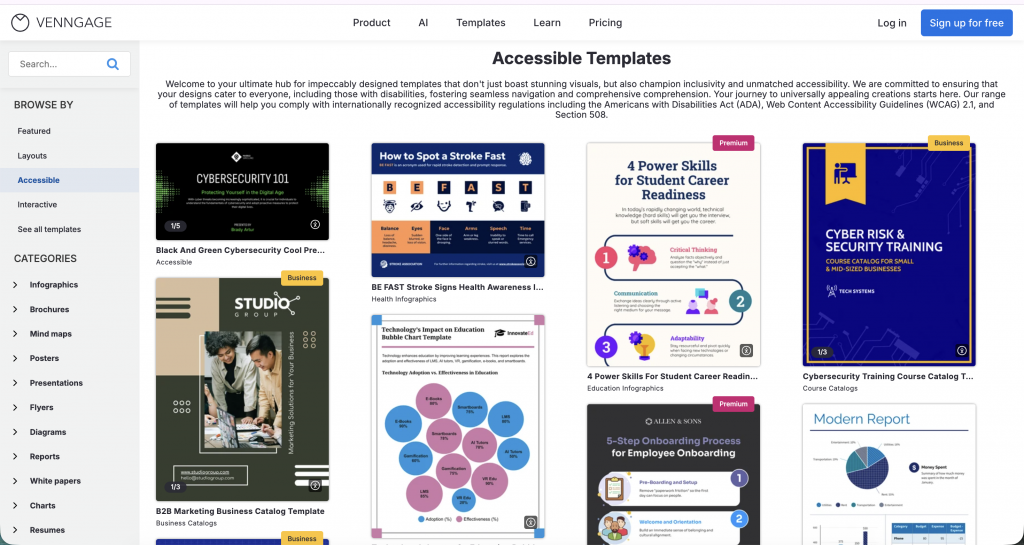
These templates comply with WCAG requirements, such as color contrast, document structure and tagging already considered. You can then customize the content without starting the accessibility work from scratch.
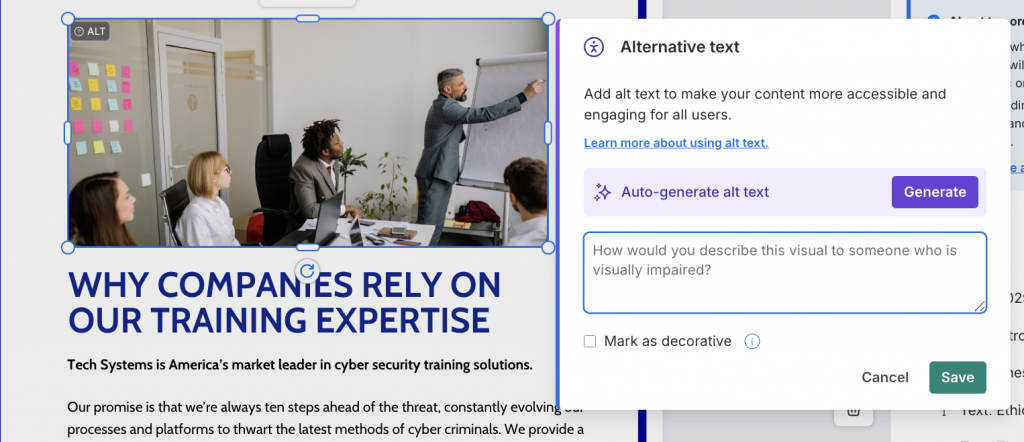
As you edit, Venngage’s built-in Accessibility Checker flags issues such as missing alt text, low color contrast, small font sizes, heading structure and logical reading order.
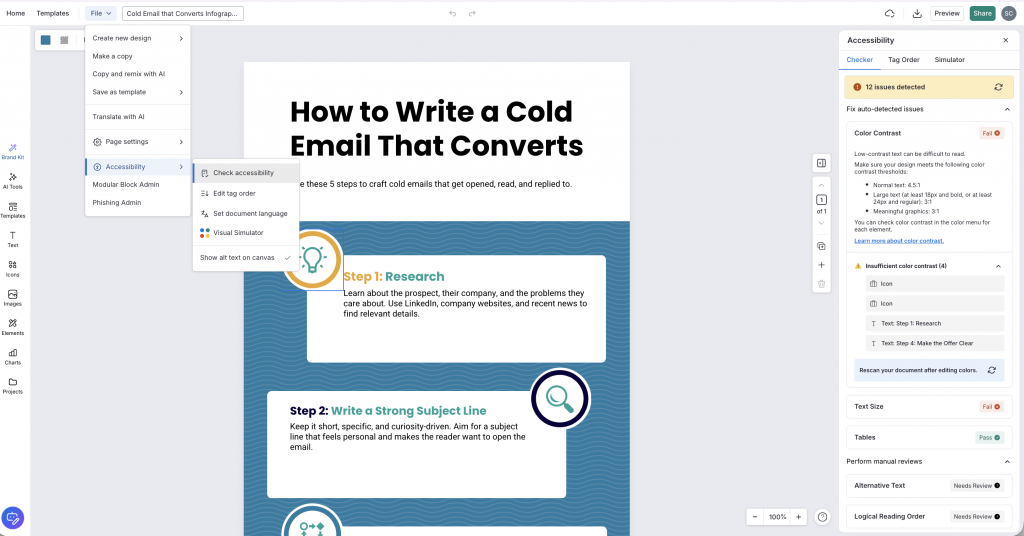
You can fix these directly in the editor, with drag-and-drop controls and use AI to generate alt text for images, charts and graphs.
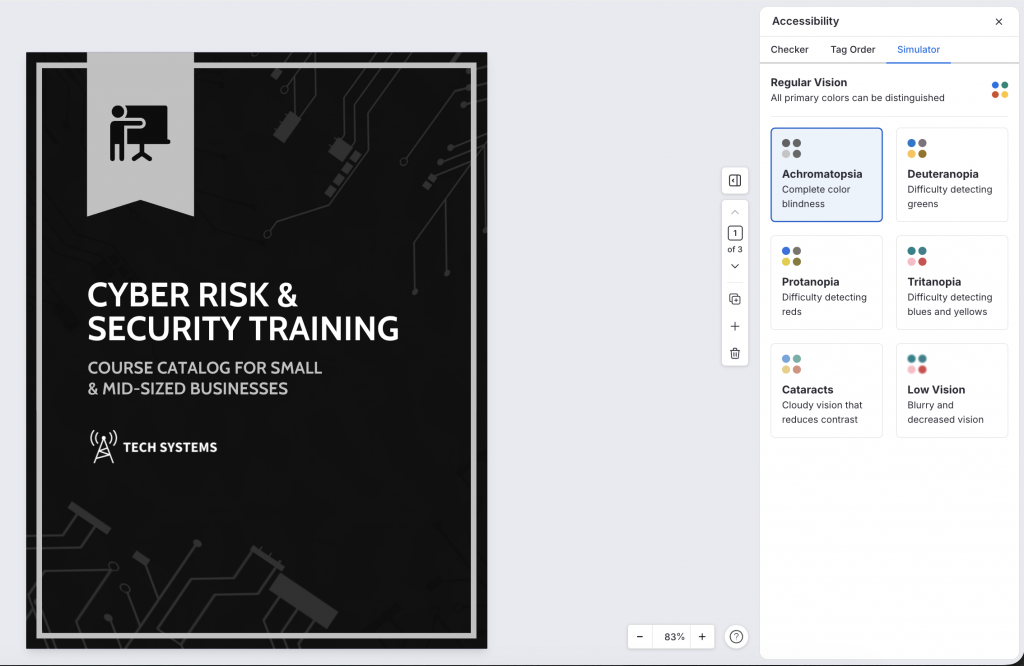
The Visual Simulator also lets you preview how the design may appear to people with different visual impairments.
Once the document is ready, you can export it as an accessible PDF/UA with elements, such as tags, reading order and document structure carried into the final file.
Learn how you can use Venngage to design accessible PDFs.
For a multi-college system, the bigger benefit is consistency. Instead of asking every faculty or staff member to work out accessible document structure independently, central teams can provide templates and a repeatable creation process.
See real examples of accessible templates for syllabi, reports, and flyers.
Accessibility training is more useful when staff can connect it to their day-to-day work. A single kickoff webinar doesn’t change daily habits.
A faculty member creating a syllabus needs different guidance from a communications team producing brochures or a department publishing annual reports. Training can therefore be split into a few practical levels:
A shared calendar for microtrainings, office hours, and template rollouts keeps this consistent across colleges instead of ad hoc and campus-by-campus.
Step 6: Track whether the PDF accessibility process is workingRelated: ADA Compliance for Higher Ed: What You Need to Know in 2026
Tracking how many PDFs have been remediated tells you how much work has been completed, but not whether the overall process is improving. If new accessibility issues keep appearing, the backlog can grow even while remediation numbers look strong.
That’s why measurement should go beyond pass/fail audits and compliance checklists. You need to track a mix of backlog and prevention metrics, such as:
Over time, you should be able to see whether the backlog is shrinking and whether fewer accessibility issues are entering the system in the first place.
A simple dashboard can give system leaders and individual colleges the same view of progress, while making it easier to identify campuses or document types that need more support.
Get the dashboard framework used to report this to leadership.
You don’t need to roll out the full program across every college at once. Starting with one pilot college gives you a chance to test the workflow, identify gaps and build a model you can use elsewhere.
Days 0–14: Set up the pilotYou don’t need to solve this system-wide on day one. A phased rollout, starting with a single pilot college, builds proof before you scale.
Even with a clear process, system-wide accessibility changes can raise practical concerns around budget, faculty adoption and the size of the existing backlog.
“We can’t afford this.”The cost of accessibility isn’t limited to remediation software or additional support. Teams also spend time repeatedly fixing the same issues in documents that are recreated every semester or year.
Fix: Start with the areas that can reduce that repeat work. Accessible templates, clearer publishing workflows and practical training can help teams address common issues earlier instead of sending every document through remediation later.
“Faculty won’t change how they create documents.”Changing an established workflow takes more than publishing a new accessibility policy. Make the accessible option easier to use by giving faculty approved templates, clear guidance and somewhere to go when they need help.
Fix: This is also where campus accessibility champions can help. Faculty and staff have local support instead of relying on a central team for every question.
“Let’s fix the entire backlog first.”The backlog needs attention, but new PDFs are being created at the same time. Waiting until every existing document has been remediated means new accessibility issues can continue entering the system while that work is underway.
Fix: Use the triage process to prioritize existing PDFs, while introducing accessible templates and publishing checks for new content in parallel.
Build a PDF accessibility process that can scaleFor multi-college systems, the goal is to make PDF accessibility easier to manage over time. That means knowing what needs remediation, giving teams clearer ways to create accessible documents and tracking whether fewer accessibility issues are entering the system.
The framework in this guide gives you a starting point to scale PDF accessibility in higher education. For a more detailed rollout, download the complete Campus Playbook with the triage decision tree, accessible template examples, 90-day launch plan and governance and measurement tools.
If your institution is thinking through how to scale accessible PDF creation across multiple colleges without adding headcount or burning out your team, we’d be glad to walk through what that could look like for your system specifically.
Document creation is usually spread across campuses, departments and teams, with different people using different tools and publishing workflows. That makes it harder for one accessibility team to maintain oversight, prioritize remediation and make sure new PDFs follow the same accessibility standards.
What does ADA Title II require for PDF accessibility in higher education?Public colleges and universities covered by ADA Title II need covered web content and mobile apps to meet WCAG 2.1 Level AA by the applicable compliance deadline. PDFs can fall within those requirements, including documents students use to access or participate in programs and services.
The current compliance dates are April 26, 2027, for larger public entities and April 26, 2028, for smaller public entities and special district governments.
Do PDFs uploaded to an LMS need to be accessible?Generally, yes. The Department of Justice specifically notes that there is no general exception for educational course content in password-protected learning management systems. Course materials used by students to participate in a class generally need to meet WCAG 2.1 Level AA.
Should colleges remediate every existing PDF?Not necessarily. Some preexisting PDFs may qualify for an exception under the Title II rule, particularly when they are no longer being used to access or participate in a public program or service.
That makes inventory and triage important. Colleges can prioritize documents that are still actively used, while removing or archiving content that no longer needs to be published.
What’s the difference between fixing, rebuilding and retiring a PDF?Start with one college or department and use the first 90 days to test the process before expanding it. That can include building the initial inventory, setting triage criteria, assigning ownership, introducing accessible templates, training staff and tracking the first set of accessibility metrics.
The goal of the pilot is to learn what works, where teams need more support and what needs to change before the process is rolled out across additional colleges.
| # | Наименование новости | Тональность | Информативность | Дата публикации |
|---|---|---|---|---|
| 1 | PDF Accessibility Checklist Before Publishing | 0 | 7.08 | 05-09-2026 |
| 2 | How LACCD Built an Accessibility Model Across Nine Campuses | 0 | 7.54 | 30-08-2026 |
| 3 | PDF Reading Order: How to Check and Fix It for Accessibility | 0 | 6.51 | 12-09-2026 |
| 4 | Should You Fix, Rebuild, or Retire Your Legacy PDFs? (Free Interactive Tool) | 0 | 7.46 | 04-09-2026 |
| 5 | How to Build Reusable Accessible Templates | 0 | 6.32 | 18-09-2026 |
| 6 | How Virtual Learning College Does Nonprofit Design In-House | 0 | 7.84 | 28-08-2026 |
| 7 | How Arkansas Scaled Digital Accessibility for 436,000 Students | 0 | 8.62 | 26-08-2026 |
| 8 | Bento Grid Infographics: Templates, Examples & How to Create One | 0 | 7.88 | 21-09-2026 |
| 9 | Digital Scholarship Foundations: Static Websites (1 of 4) | 0 | 9.38 | 14-10-2026 |
| 10 | Яндекс 360 выпустил Документы для компьютеров | 0 | 16.54 | 17-09-2026 |