Просмотр новости
Найдите то, что Вас интересует
 Спутники
 РН
РН SpaceX
 Роскосмос
 NASA
NASA
СпутникиРНSpaceXРоскосмосNASAIs your laptop fan making sound, does it get heated, or Windows shuts down in the middle of your work without any notice? To fix these issues do you close unwanted programs, restart the PC or both? Does doing so help? No, do you know why? Overheating is caused by a combination of two or… Continue reading Laptop Overheating? Best Ways to Lower the Temperature
The post Laptop Overheating? Best Ways to Lower the Temperature appeared first on .
Summary: Most laptops overheat due to blocked airflow, an outdated power/driver setup, or aging thermal paste. The best to fix it by cleaning the vents, working with a laptop on a hard flat surface, and switching Windows power mode. These fixes get the problem sorted in under ten minutes. However, if the fan is making noise and the laptop just shuts off, apply physical fixes below before doing anything else.
Is your laptop fan making sound, does it get heated, or Windows shuts down in the middle of your work without any notice? To fix these issues do you close unwanted programs, restart the PC or both? Does doing so help? No, do you know why?
Overheating is caused by a combination of two or three things like the dust clogging the fan, power plan settings, outdated graphics and mismanaging power states. Yet most people just concentrate on fixing one aspect leaving others due to which the problem resurfaces. This means if you are cleaning the dust, you need to check the drivers, power settings and other things to fix laptop runs hot permanently.
Before we get into details try this quick fix – close the laptop and flip it over to check whether the exhaust vent has dust. If it does, we will start from there.
What’s a Laptop’s Normal TemperatureBefore we start applying the fixes let’s understand what you are dealing with. Is it overheating or is the laptop under load and is performing as it should.
Tip : If a laptop is hot to the touch on the bottom but the temperature is 70°C on the CPU sensor this isn't overheating. It is the chassis doing its job.
Dust is one of the common causes of laptop overheating, and it’s easy to clean out.
Note : Compressed air cleans the dust from outside. If there is a thick layer of dust packed directly onto the heatsink fins your laptop needs a professional cleaning.
Beds, couch cushions, and blankets block the intake vents on the bottom due to which laptops pull air in from underneath and push it out the back or side. To avoid this, place it on a desk, and then use it. It helps fix random overheats.
CPU Overclocking Guide: What It Is and How to Do It Safely
Method 3: Use a stand or padIf you are using a laptop stand or cooling pad that raises the chassis and opens up airflow underneath, it is okay. But if the stand blocks air intake vents change it as it is blocking the vents.
Method 4: Keep it out of direct heatSunlight, rooms without air conditioning, or sunlit windows, can raise the ambient temperature and the laptop’s cooling system has to work against. A laptop that works fine at 22°C room temperature can throttle at 32°C room temperature because the cooling system does not have enough room to dump heat into.
Method 5: Check the batteryIf your trackpad is not setting right and you feel unevenness or your laptop cannot be placed flat on your desk or the bottom panel is puffed it seems the battery is swollen and causing laptop overheating. Replace the battery
Method 6: Don’t stack anything on it while it’s runningNever keep anything on top of your keyboard deck. This blocks venting causing overheating.
Windows Settings You Need to ChangeMethod 7: Switch the power modeWhen the power mode is set to “Best Performance,” the CPU boosts aggressively which means more heat. Switching it to “Balanced” reduces sustained fan noise and temperature.
Browser sync process, a cloud backup tool, or an old installer are the common processes consuming CPU resources. Close unwanted processes to bring down the temperature.
PC Turns Off Randomly But No Overheating: Causes & Fixes!
Method 9: Optimize startup appsEvery app that runs at startup adds to CPU load, this increases the temperature before you open anything yourself. Therefore, removing unwanted apps from startup is suggested
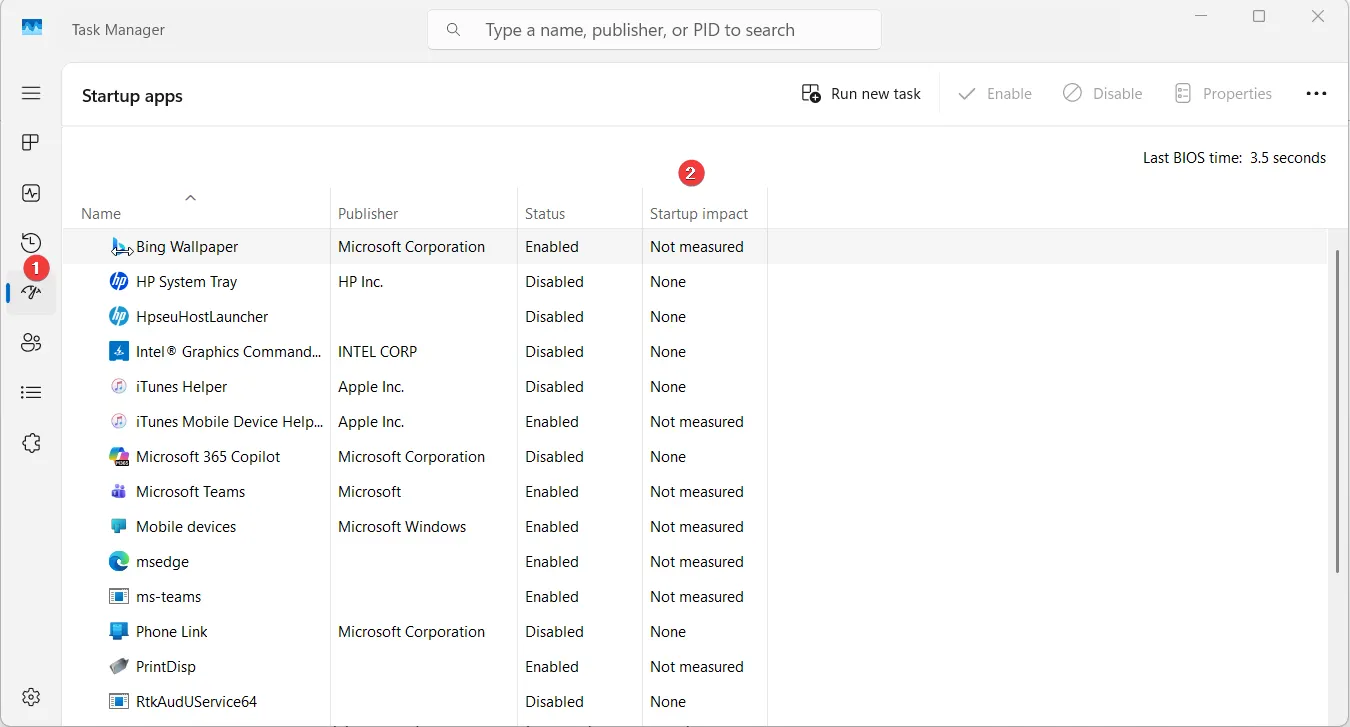
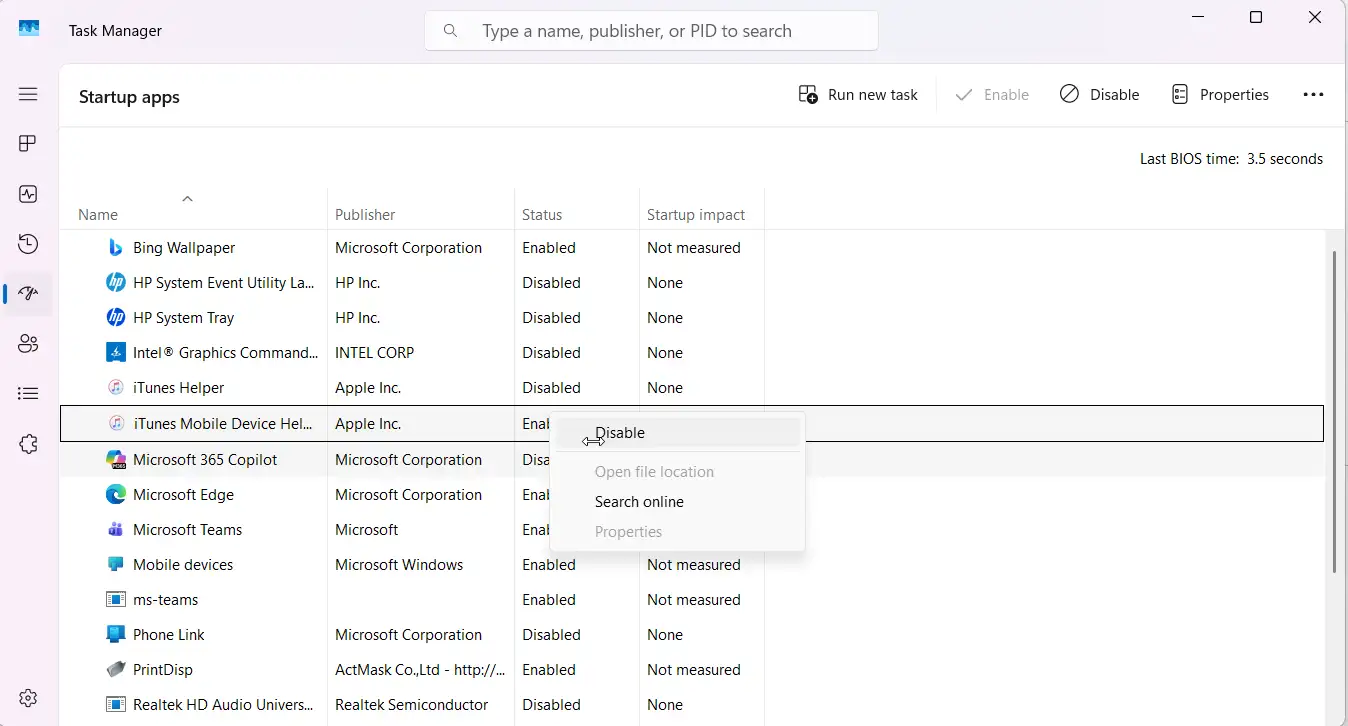
Never leave updates pending as it is one of the common unexplained reasons for temperature spikes. Once Windows updates are completed the problem resolves itself.
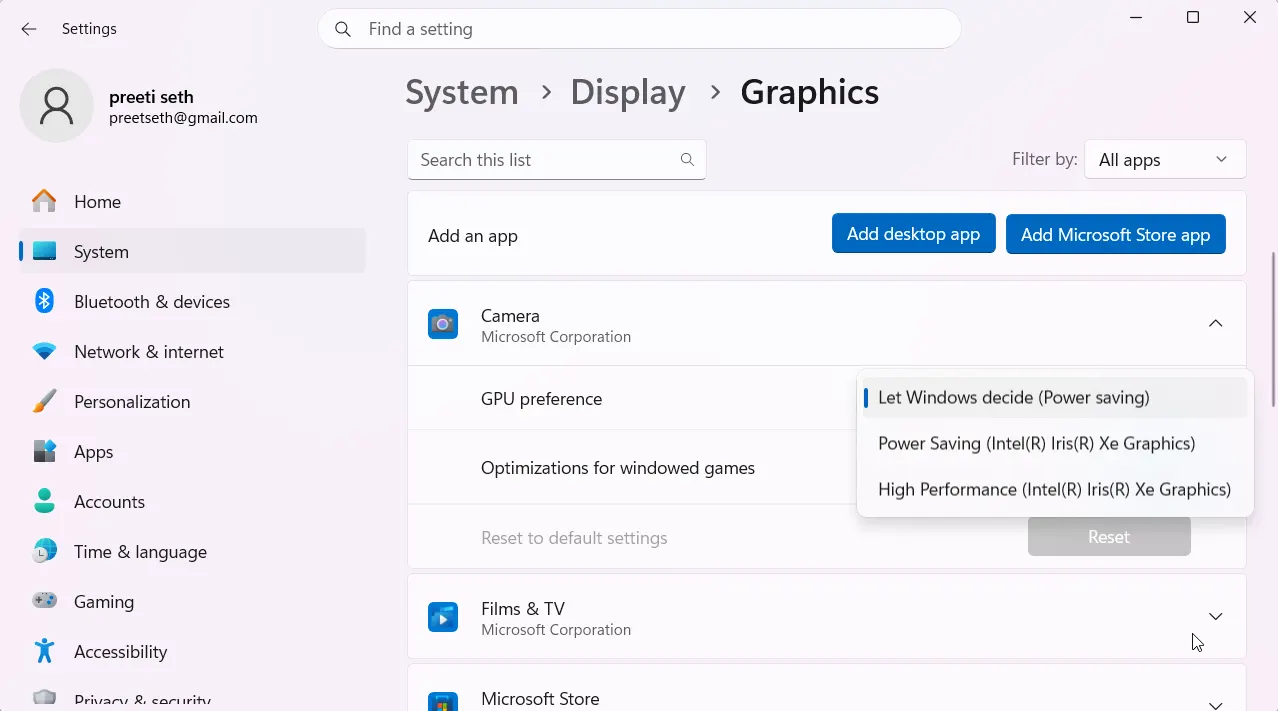
If your laptop has both integrated and dedicated graphics, tell Windows to keep everyday apps off the dedicated GPU.
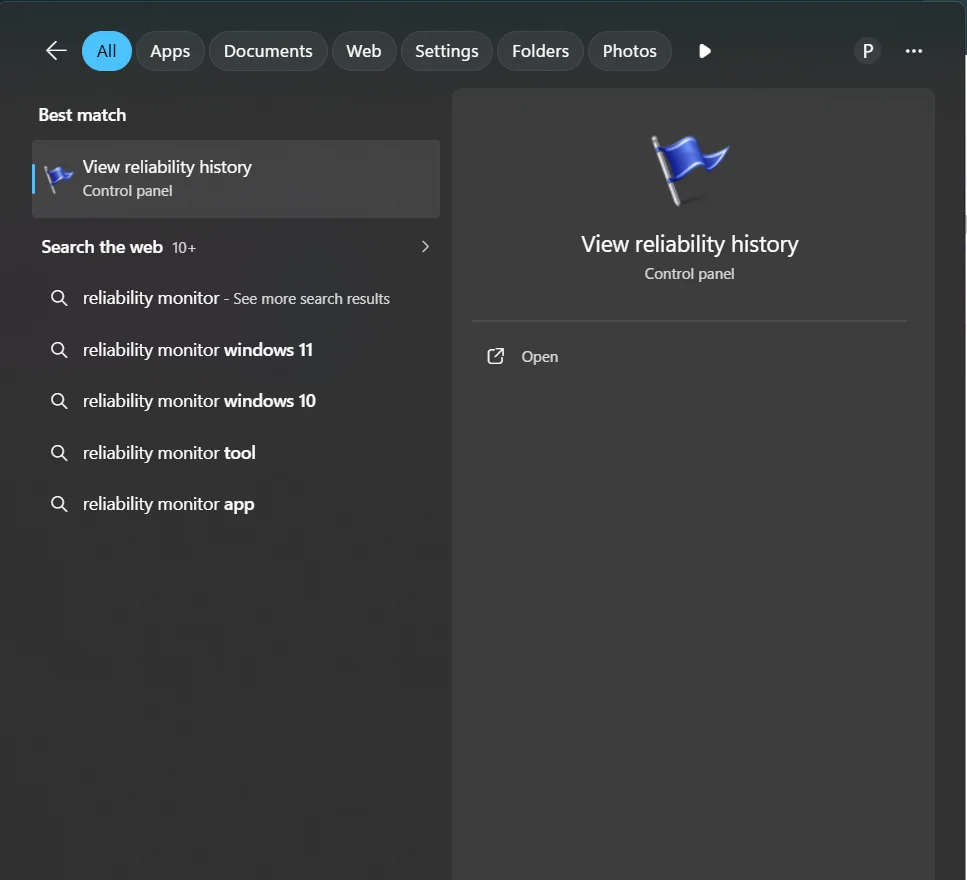
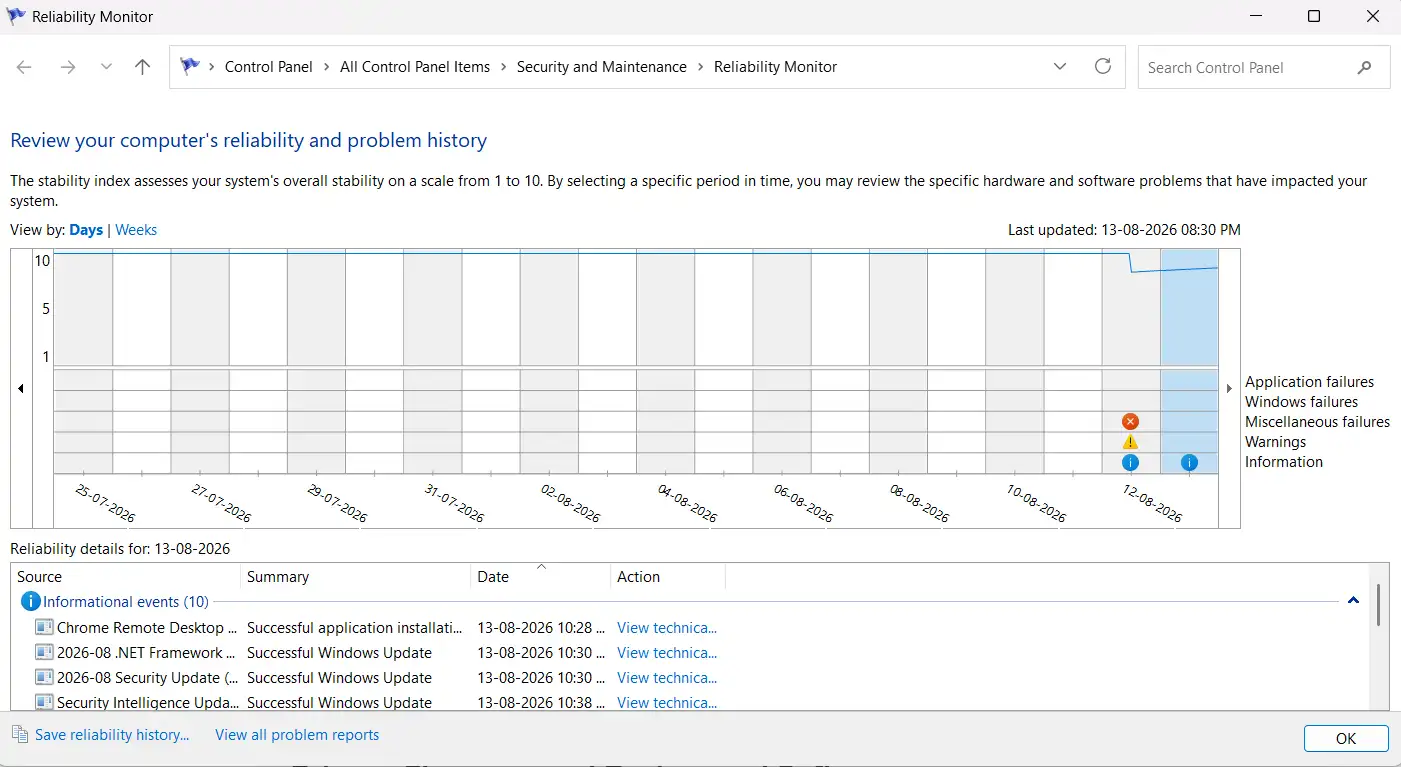
If the laptop restarts unexpectedly, go to the reliability monitor to check the cause.
How to Fix Computer Suddenly Restarts While Playing Games (not Overheating)
Method 13: Check browser tab countVideo-heavy tabs with autoplay or embedded ads using hardware-accelerated video keep the GPU and CPU active even when idle. Close such tabs as idle tabs with one playing an autoplay video in the background generates more load than a running document editor.
Drivers, Firmware, and Background SoftwareMethod 14: Update your GPU driverAn outdated GPU driver cannot manage power states correctly. Therefore to prevent laptop overheating keep it updated.
Note : Manufacturer driver packages (like NVIDIA's full installer) often bundle extra software to skip them being installed and choose a clean install or driver-only option during setup.
Manufacturers from time to time release BIOS updates to adjust thermal tables and fan curve behavior. If your laptop is getting overheated after a major Windows update, check your manufacturer’s support site for the current BIOS version against what you’re running. If it is old, update the BIOS by following the exact manufacturer’s instructions.
Method 16: Clean junk filesCluttered data doesn’t generate heat but once you clean them it helps reduce background disk indexing and search-service overhead on laptops. For this, you can use built-in Windows Storage Sense or can use a PC optimization tool.
Most gaming laptops allow controlling fan through the manufacturer’s software like Lenovo Vantage, HP Omen Gaming Hub, ASUS Armoury Crate, MSI Center. Use them to switch from the default automatic curve to “Performance” or “Turbo” mode. If you don’t have this option, probably your laptop doesn’t support manual fan control. Check the BIOS setup menu, restart the PC and press F2 or Del to get into BIOS.
Method 18: Undervolt the CPUUsing tools like Intel XTU or ThrottleStop you can undervolt the voltage CPU uses at a given clock speed, to lower heat output. Intel from around the 11th-gen as a security response to an exploit known as Plundervolt disabled voltage/frequency scaling access through the standard interface. This means on newer laptops, undervolting tools won’t have any effect.
Method 19: Replace the thermal pasteTo perform this step the chassis needs to be opened which will void the warranty. Hence, we suggest contacting a professional for it.
Editor’s Recommendation
If you’ve cleaned the vents, fixed the power settings, updated every driver, and the temperature even in idle state is near 90°C, laptop shutdown repeatedly, or the fan is making a grinding or rattling noise then it is a hardware issue that can’t be fixed by software or cleaning.
Frequently Asked Questions| # | Наименование новости | Тональность | Информативность | Дата публикации |
|---|---|---|---|---|
| 1 | Got an Apple Spyware Alert? What It Means and What You Should Do | 0 | 6.94 | 01-09-2026 |
| 2 | Is Windows Defender Good Enough to Protect Windows 10 or 11? | 0 | 12.35 | 02-09-2026 |
| 3 | ChromeOS 151 Is Here: New Features, 18 Security Fixes, and Everything to Know | 0 | 12.68 | 24-08-2026 |
| 4 | New Mac Mini 2026: Release Date, Price, Specs and What to Expect | 0 | 10.06 | 27-08-2026 |
| 5 | Разгон ноутбука ASUS ZenBook UX533FTC | 0 | 5 | 30-06-2026 |
| 6 | Tipps für heiße Tage: So schützen Sie Ihr Handy und Laptop vor Sommerhitze | 0 | 10.83 | 22-06-2026 |
| 7 | Раскрыты частые причины перегрева компьютера | 5 | 7 | 06-07-2026 |
| 8 | Cómo mejorar la vida útil de la batería de un portátil | 0 | 4.76 | 30-04-2026 |
| 9 | Как ускорить старый ноутбук за 3 дня — без апгрейда железа | 5 | 7 | 18-06-2026 |
| 10 | Hitze stresst Handy und Laptop: So schützen Sie Ihre Geräte | 0 | 7 | 24-06-2026 |