Просмотр новости
Найдите то, что Вас интересует
 Спутники
 РН
РН SpaceX
 Роскосмос
 NASA
NASA
СпутникиРНSpaceXРоскосмосNASAQuick Answer: ChatGPT Internal Server Error usually means your request could not finish because the server failed or the connection broke. First, check ChatGPT server status to verify if it is working. If the server ... Read more
The post ChatGPT Internal Server Error: What It Means and How to Fix It appeared first on NavThemes.
Quick Answer: ChatGPT Internal Server Error usually means your request could not finish because the server failed or the connection broke. First, check ChatGPT server status to verify if it is working. If the server looks fine, refresh, start a new chat, clear cache, turn off VPN and try again.
ChatGPT Internal Server Error is one of those errors that sounds bigger than it actually is. You open ChatGPT, send a message, and instead of getting the answer, it shows Internal Server Error. Not a good mood.
This error can appear while sending a prompt, loading a chat, logging in, uploading a file or generating a reply. Sometimes it is really a server-side problem. Sometimes it is your browser, app, VPN, internet or old session making the request fail.
The good thing is that you do not need to do anything risky first. Start by checking the server status, then try simple fixes. Don’t change all settings at once.
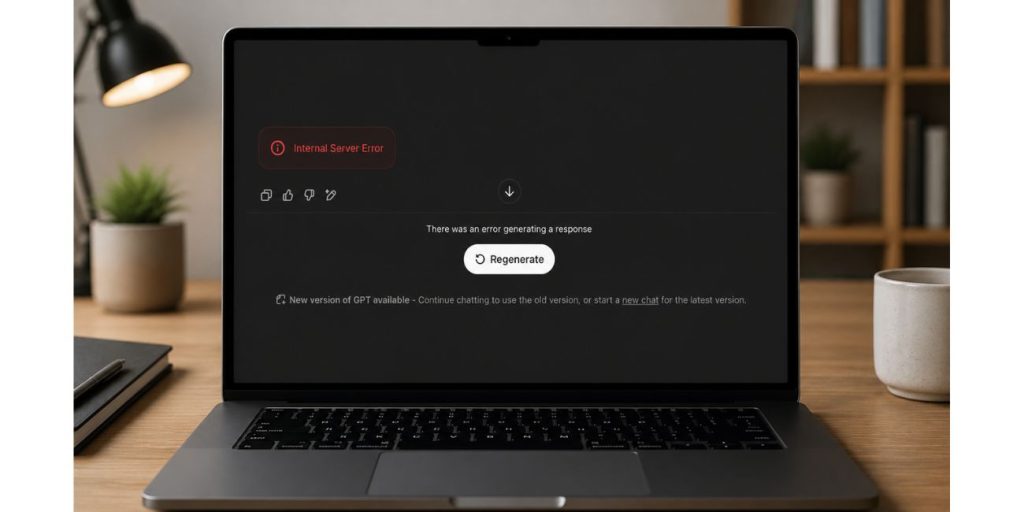
ChatGPT Internal Server Error means ChatGPT could not complete your request properly. In simple words, your message reached the system, but something failed before the answer could be completed.
It does not always mean your account is blocked or broken. Most of the time, it is temporary. The request failed, the page got stuck, or the server could not return the response at that moment.
You may also see it as 500 Internal Server Error, Something went wrong, or a similar server type message. Different wording, same general feeling. The request did not finish.
Is ChatGPT Internal Server Error the Same as 500 Error?Yes, in many cases, an Internal Server Error is related to a 500 error. A 500 error is a general server error. It means the service had a problem while handling the request.
For a normal user, you do not need to understand the technical side too much. Just think of it like this: ChatGPT tried to process your request, but something broke before it could send the final result.
Sometimes waiting fixes it. Sometimes refreshing fixes it. And sometimes your browser or network needs a small clean up.
Why Does ChatGPT Show Internal Server Error?This error can come from ChatGPT’s side or from your side. That is why it feels confusing. Same error, different reasons.
Common reasons include:
If it happens once, don’t panic. If it keeps happening, then you need to test where it is coming from.
Fix 1. Check ChatGPT Server Status First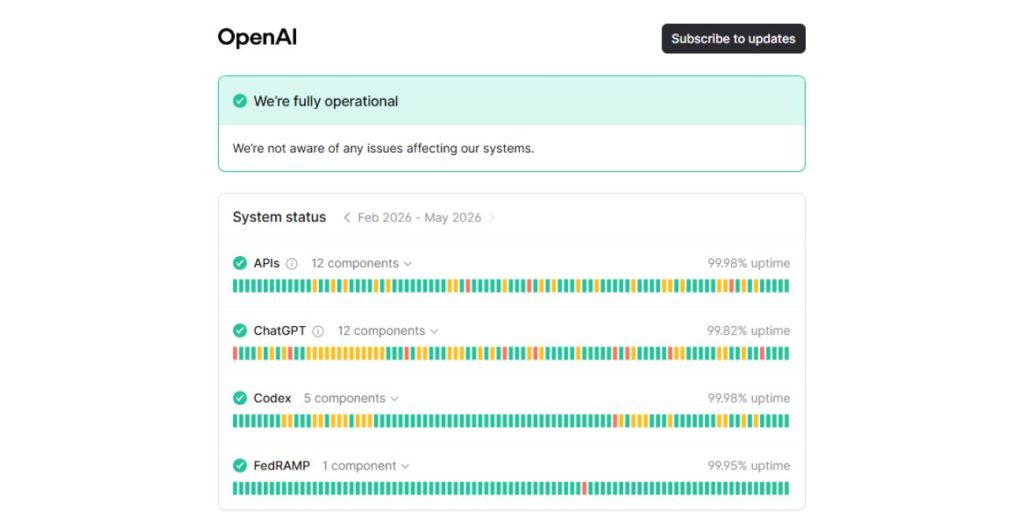
Before fixing your browser or app, check ChatGPT server status first:
If there is an active issue there, then the problem may not be your device. In that case, clearing cache, changing browser, reinstalling the app or turning off extensions may not solve it right away. You may just need to wait.
If the status looks normal, then move to the local fixes below. This saves time because there is no point fighting your browser if the server itself is having a bad day.
Fix 2. Refresh the Page and Try AgainIf the server status looks fine, refresh ChatGPT once. Sometimes the request fails only one time, and a normal reload fixes it.
If the error came while generating an answer, send the prompt again after a few seconds. Do not keep pressing retry too fast. That can make the issue feel worse.
If the same prompt keeps failing, copy it first. Then try it in a new chat.
Fix 3. Start a New Chat
If Internal Server Error appears only in one conversation, the chat may be stuck. This can happen with long chats, too many edits, too many files, or a conversation that has been open for a long time.
Start a new chat and send a shorter version of your request. If the new chat works, then the old one was likely the problem.
This is a little annoying because you may lose some context. But it is better than trying the same broken chat again and again.
Fix 4. Make Your Prompt ShorterVery long prompts can sometimes fail. This can happen when you paste a full article, long code, big logs, too many instructions, or several tasks in one message.
Try breaking the work into smaller parts. For example, ask ChatGPT to fix one section first instead of sending the whole article with many instructions at once.
Small prompts are easier to process. And if one part fails, you do not lose the whole work.
Fix 5. Clear Cache and Cookies in Browser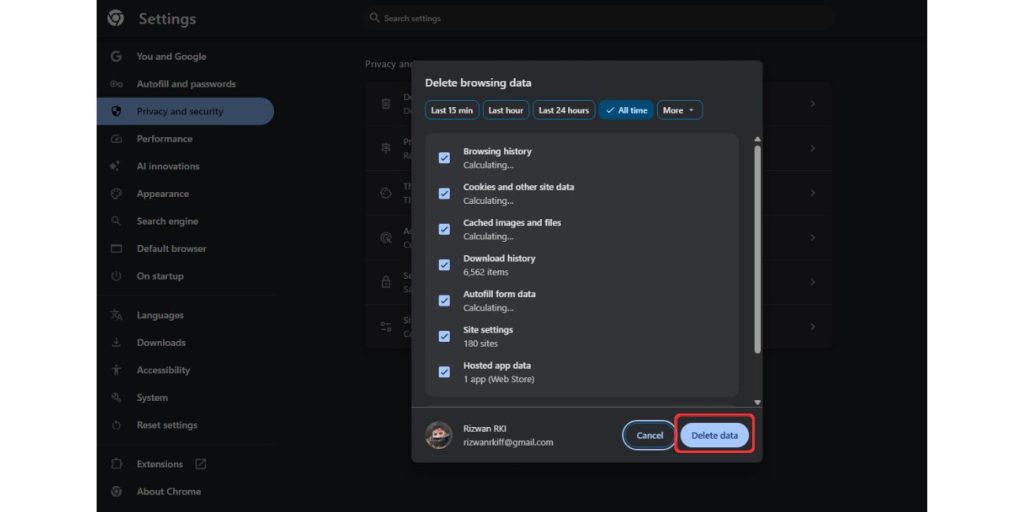
Old browser data can break ChatGPT loading, login or request handling. This may show as Internal Server Error, login loop, blank screen or slow loading. It is boring, but cache causes many web app issues.
Steps to follow:
You may need to sign in again after clearing cookies. That is normal. Cookies store login data too.
Clear Cache in the ChatGPT AppIf you are using the ChatGPT app, the fix is a little different. Mobile apps do not always show cache settings the same way browsers do.
On Android:
On iPhone:
iPhone does not always give a simple clear cache button for every app. Reinstalling the app works like a stronger reset if the app keeps failing.
Fix 6. Try Incognito or Another BrowserIncognito is a quick test. It helps you see if the issue is coming from saved browser data or extensions.
Open ChatGPT in incognito mode and send a small test message. If it works there, your normal browser probably has a cache, cookie or extension problem.
Also try another browser. If ChatGPT fails in Chrome but works in Edge or Firefox, then the issue is likely with Chrome. Not your account.
Fix 7. Disable Browser Extensions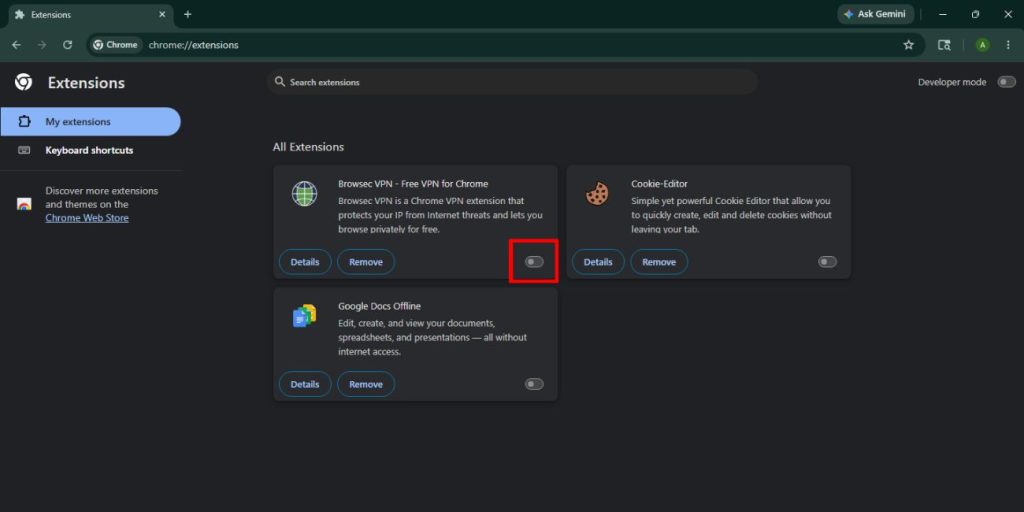
Some extensions can block ChatGPT without telling you. Ad blockers, privacy tools, script blockers, VPN extensions and secure DNS tools can interfere with the request.
Test it like this:
This is better than removing everything. You find the exact extension causing the issue.
Fix 8. Turn Off VPN, Proxy or Secure DNSVPN, proxy or secure DNS tools can sometimes cause server type errors. ChatGPT may open, but requests may fail when the connection is routed through a blocked or unstable path.
Turn off your VPN once and reload ChatGPT. If it starts working, your VPN server was likely the issue.
If you use browser VPN extensions, Apple Private Relay, web filters or secure DNS tools, turn them off for testing too. You do not need to remove them forever. Just test clean once.
Fix 9. Check Your Internet or NetworkInternal Server Error can also happen when your connection is unstable. Your Wi-Fi may look connected, but the request can still fail if the network drops in the middle.
Try another network. Use mobile hotspot, switch from Wi-Fi to mobile data, or try a different Wi-Fi connection. If ChatGPT works on another network, your first network is the problem.
Also be careful with school, office or public Wi-Fi. These networks can block or filter tools like ChatGPT. In that case, mobile data is the fastest test.
Fix 10. Fix Internal Server Error During File UploadIf the error appears when uploading a file, the file may be the problem. It may be too large, damaged, unsupported, or blocked by your network.
Try these:
If the file uploads in another browser or network, then the file itself may be fine. The issue was likely browser or network related.
Fix 11. Sign Out and Sign Back InSometimes your login session gets stuck. ChatGPT may open normally, but requests keep failing.
Sign out of ChatGPT, close the browser or app, then sign back in again. Use the same login method you normally use. If you use Google, use Google again. If you use Apple, Microsoft or email, use the same one.
This is a small fix, but it can refresh your account session.
When to Contact SupportContact support if the error keeps coming back after you tried the main fixes. But collect details first. It makes the support chat less painful.
Keep these ready:
Do not share your password or login codes. Support does not need those.
FAQs About ChatGPT Internal Server Error What does ChatGPT Internal Server Error mean?It means ChatGPT could not complete your request properly. The issue can be a server problem, broken session, browser issue, VPN, network problem or app glitch.
Is ChatGPT Internal Server Error my fault?Not always. It can be from ChatGPT’s side. But cache, extensions, VPN, weak internet or a stuck chat can also trigger it.
Should I keep refreshing ChatGPT?Refresh once or twice, but do not spam refresh. If the server status shows an issue, wait and try later.
Does clearing cache fix Internal Server Error?Yes, it can help if old cookies, cached files or broken site data are causing ChatGPT to fail in your browser.
Can VPN cause ChatGPT Internal Server Error?Yes, VPN, proxy, secure DNS tools or web filters can interfere with ChatGPT requests and cause server type errors.
Why does ChatGPT work in incognito but not normal browser?That usually means your normal browser has a cache, cookie, extension or site data problem.
Final ThoughtsChatGPT Internal Server Error usually means the request could not finish. Start by checking ChatGPT server status. If the service looks fine, refresh, start a new chat, shorten your prompt, clear cache, test incognito, disable extensions and turn off VPN.
The main thing is to test one fix at a time. Don’t change everything together because then you won’t know what solved it.
Are you seeing Internal Server Error on the browser, app, login or file upload? Comment where it appears, because the fix may differ.
| # | Наименование новости | Тональность | Информативность | Дата публикации |
|---|---|---|---|---|
| 1 | Пользователи из ряда стран пожаловались на сбой в работе ChatGPT | 0 | 9.26 | 25-07-2026 |
| 2 | New Wordpress Website - 500 Internal Server Error | 0 | 8.22 | 20-09-2026 |
| 3 | Пользователи по всему миру пожаловались на работу ChatGPT | 0 | 12.49 | 25-07-2026 |
| 4 | How to Fix Grok There Was an Error on App or Browser | 0 | 4.69 | 15-05-2026 |
| 5 | В работе ChatGPT произошел сбой | 0 | 7.09 | 23-07-2026 |
| 6 | OpenClaw Telegram Bot Not Working: Causes and Fixes | 0 | 6.08 | 08-06-2026 |
| 7 | Weltweite Störung bei KI-Plattform: ChatGPT ist down: Was Sie jetzt tun können | 0 | 5 | 10-06-2025 |
| 8 | Discord Awaiting Endpoint: Complete Troubleshooting Guide | 0 | 8.22 | 18-05-2026 |
| 9 | Disruption with GPT 5.3 Codex | 0 | 13.82 | 20-07-2026 |
| 10 | How to Fix Blue Screen of Death on Windows | 0 | 5.71 | 06-05-2026 |